
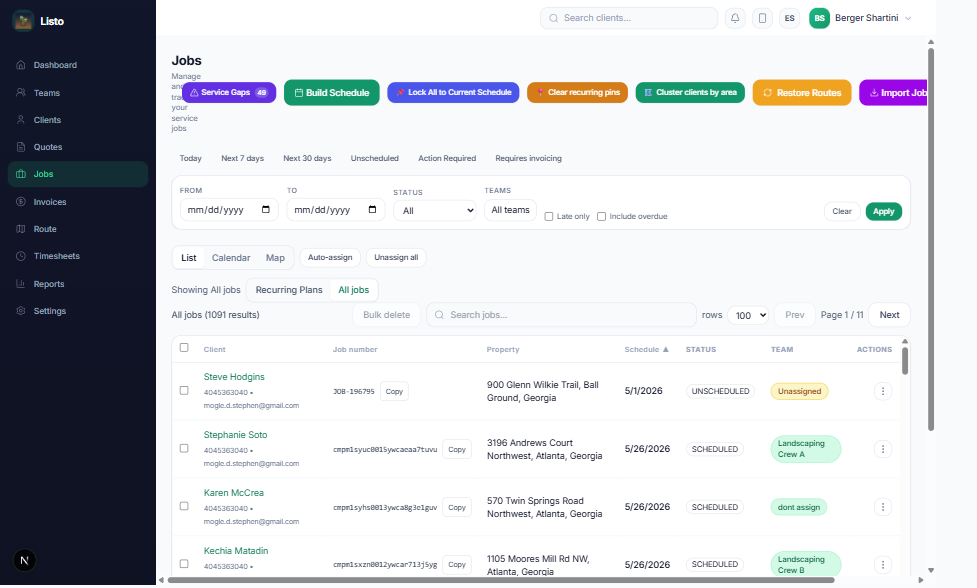
The Jobs page is where your schedule lives. Flip between List, Calendar (month, week, or day), and Map views — whichever way you like to see your work.
Create a job
- 1Click to create a job and pick the client (their address fills in automatically — override it for a different property).
- 2Choose the service, date, time, and duration.
- 3Leave Auto-assign on to let Listo pick the best team, or choose a team yourself.
- 4For repeat work, turn on Recurring and pick the frequency — Listo checks for schedule conflicts before saving.
Understand job statuses
- Unscheduled — on the books but not yet on the calendar.
- Scheduled — assigned a date (and usually a team).
- In Progress — a crew has checked in.
- Completed — done; invoicing can fire automatically based on your settings.
- Canceled — hidden from the default list; a checkbox shows them when needed.
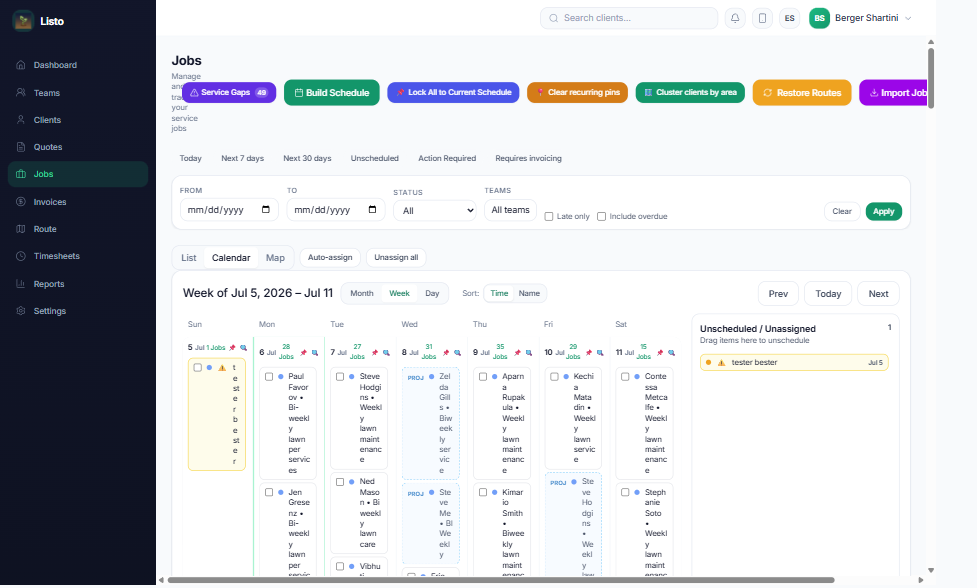
Recurring plans
Recurring work is managed as templates under the Recurring Plans view, filterable by cadence (Weekly, Biweekly, Monthly, and more). Listo materializes upcoming visits from each plan automatically, and spacing alerts warn you if visits drift too close together or too far apart.
Power tools for busy schedules
- Auto Assign — assign every unassigned job to the best-fit team in one click (Unassign All reverses it).
- Smart Optimize — materializes upcoming recurring jobs, clusters them geographically, rebalances teams, and optimizes routes in one pass.
- Schedule Assistant — a capacity heatmap that shows which days can fit more work before you promise a date.
- Import jobs from CSV, bulk-move jobs on the calendar, and restore from automatic schedule snapshots if you ever need to undo a big change.
Tip: Time pins lock a recurring job to its slot so optimization won't move it. If a client's schedule frees up, clear their pins from the client profile — or org-wide from the Clients page.