
The Invoices page tracks every dollar: KPIs up top for Total Invoices, Total Billed (last 30 days), Outstanding, and Bad Debt Written Off, with overdue invoices pinned to the top of the list.
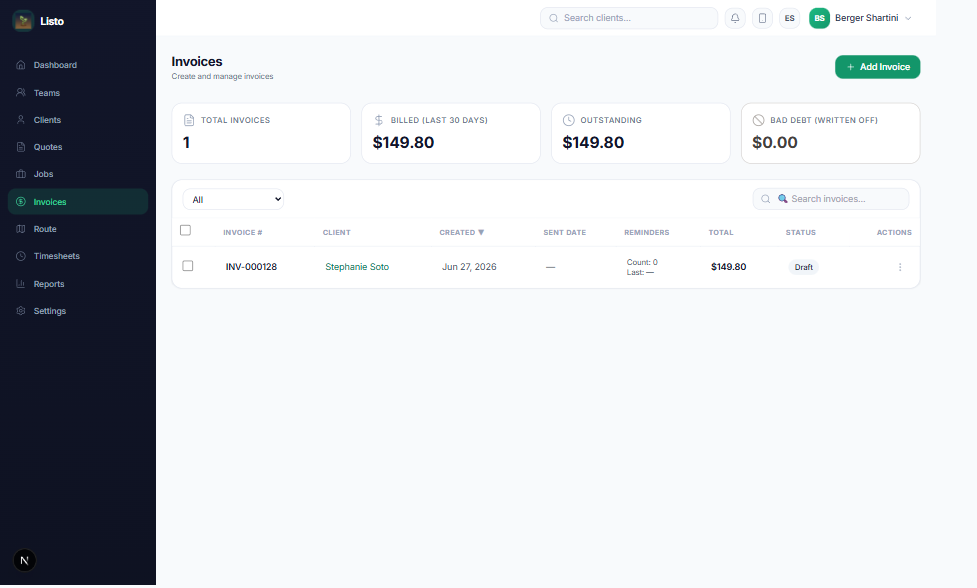
Create and send an invoice
- 1Click Add Invoice and pick the client.
- 2Add line items and notes, then review before sending.
- 3Send — your client gets an email with a secure Pay link (no login needed), and can also pay from their Client Portal.
- 4Track the status from Draft → Sent → Paid, with Partially Paid, Overdue, and more along the way.
Tip: You often won't need to create invoices manually at all — with automation on, completing a job can generate and email the invoice for you, and monthly-cadence clients get one consolidated invoice at month end.
Collect what you're owed
- Send reminders — bulk-select invoices or use "Send reminders to overdue"; Listo enforces a 3-day gap so clients never feel spammed.
- Charge Now — instantly charge a client's card on file (requires Stripe Connect and a saved payment method).
- Auto Pay — enrolled clients are charged automatically when invoices come due.
- Record payment or Mark paid for cash and checks.
Fix mistakes gracefully
- Refund — issue a full or partial refund from the invoice's Refund modal.
- Void — cancel an invoice that shouldn't exist.
- Write off bad debt — keep your Outstanding number honest when a balance is truly uncollectable.
- Duplicate — reuse a past invoice as a starting point for a new one.