
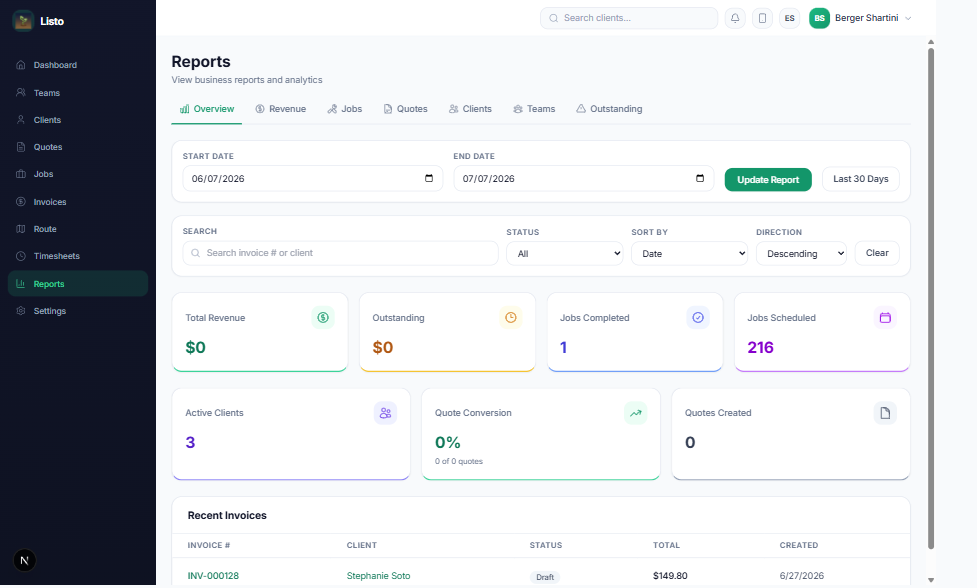
Reports gives owners and admins the numbers behind the business, organized in seven tabs: Overview, Revenue, Jobs, Quotes, Clients, Teams, and Outstanding.
How to use it
- 1Pick a date range at the top — every tab (except Outstanding) respects it.
- 2Open the tab you need: Revenue for money in, Jobs for throughput by status, Quotes for win rate, Teams for crew productivity.
- 3Use each tab's search, status filter, and sorting to drill into the detail rows.
- 4Check Outstanding regularly — it lists every unpaid balance regardless of date, so nothing slips.
- KPI summary cards at the top of each tab give you the headline before the detail.
- Job statuses (Unscheduled, Scheduled, In Progress, Completed, Canceled), quote statuses, and invoice statuses are all filterable.
- Pair Reports with the Dashboard: Dashboard for today's pulse, Reports for the trend.
Tip: Review the Quotes tab monthly. If your approval rate drops, revisit pricing or follow-up timing — the bulk quote reminder tool on the Quotes page can recover slow responders.